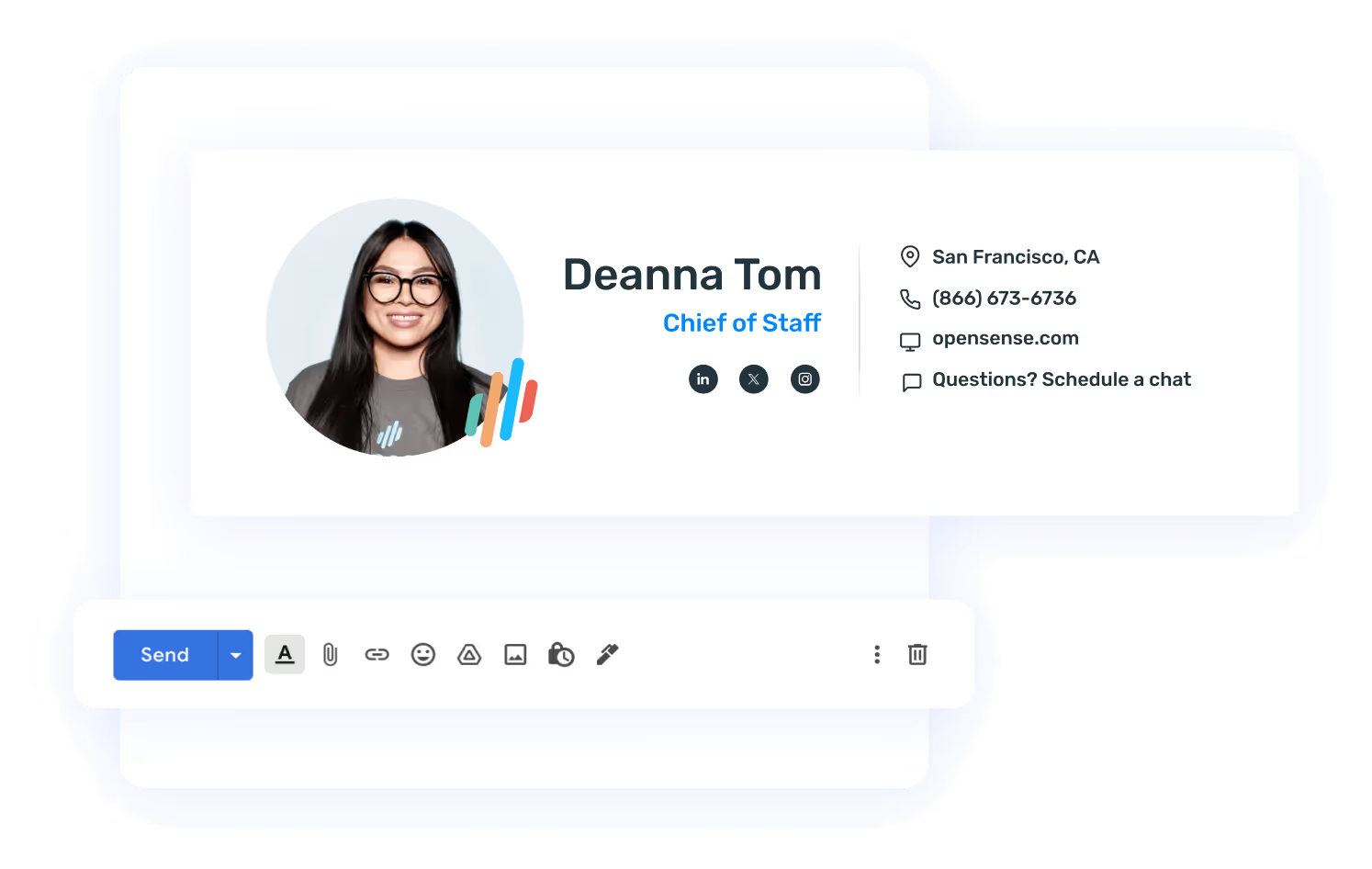




Email Signature Templates
A good email signature template starts with five basics:
- Full name
- Company name
- Title
- Phone number
- Company website URL
Everything else is optional.
The harder part is making those five lines look like your brand. Font, size, color, and the order of each line all play a part. Aim for memorable, not distracting. The design principles section of our complete email signature guide covers how far to take it.
Once the basics look right, these add-ons make a signature work harder:
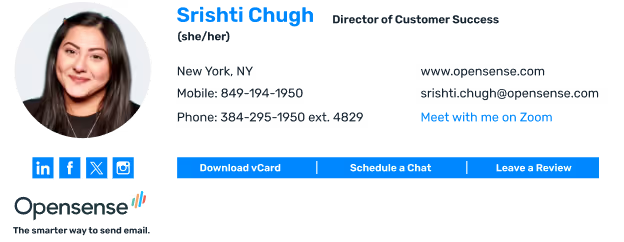

- Headshot Puts a face to the name. Great for anyone who talks to customers or prospects. Use a square or circle crop, and keep it small.
- Social icons Every email your team sends can earn your social channels more traffic, follows, and subscribes.
- Company logo and tagline Your brand, front and center in every email.
- Calendar scheduling link A link or button that lets people book time with you. Good for engagement and conversions.
- Dynamic email banner The most important piece. It turns employee email into your new favorite advertising channel.
Free Email Signature Templates
Free email signature templates are easy to find. Most free generators let you pick a design, fill in your details, and copy the result into your email.
That works well for one person. A whole company is a different story:
| Free generator | Signature platform | |
|---|---|---|
| Built for | One person and their personal brand | Your whole company or organization |
| How it rolls out | Each person copies and pastes their own, which doesn’t scale | Brand, marketing, or IT manages every signature centrally, with zero effort for each employee |
| Customization | Often very limited | Built to best represent the brand |
| Email banners | Often not available | Email ad campaigns, published and updated from one place, by sender or recipient |
| Cost | Free | A monthly or annual cost |
A signature platform flips that around. Your brand, marketing, or IT team manages every signature from one place, and employees don’t have to do a thing.
Platforms like Opensense also run email ad campaigns, which can support your event, content, customer, or account-based marketing.
Tip: you can design a banner in Canva, save it as a file, and upload it to your signature platform as the email ad banner.
Email Signature Templates for Outlook
Where your signature goes depends on which Outlook you use. The new Outlook and Outlook on the web share one set of steps. Classic Outlook for Windows has its own.
New Outlook and Outlook on the web
Menu pathSettingsAccountsSignatures
- Select Settings (the gear icon), then go to Accounts and Signatures.
- Have more than one account? Choose the one this signature belongs to.
- Select Add signature and give it a name.
- Type and format your signature, or paste in a template. An email signature platform like Opensense can do this automatically for every employee.
- Choose whether it goes on new messages, replies and forwards, or both. Then select Save.
Classic Outlook for Windows
Menu pathFileOptionsMailSignatures
- Open Outlook on your computer. Select File, then Options.
- Select Mail. Under Compose messages, select Signatures.
- Select New to start a signature, or pick an existing one from the list to edit it.
- Type and format your signature in the Edit signature box. A free template or generator can help here.
- Select OK to save.
- Start a new email or reply to a thread to see your signature in action.
Email Signature Templates for Gmail
Gmail keeps your signature in its settings. Here’s how to set it up:
Menu pathSettingsSee all settingsSignature
- Sign in to Gmail at mail.google.com.
- At the top right, select Settings (the gear icon), then See all settings.
- Scroll to the Signature section and type your signature. You can add an image or change the text style. A Gmail signature generator can help here, or you can build a Gmail signature template in a platform like Opensense.
- At the bottom of the page, select Save Changes.
- Send a new email or reply to a thread to test it.
Free email signature templates for Gmail work fine for one person. Rolling one standard template (or a few) out to everyone is a different job. For that, use an email signature platform that integrates with Gmail.
Free Outlook Signature Templates
Free Outlook signature templates make sense for a personal account. If all you need is your name, phone number, and a link to your website or LinkedIn, a free template does the job.
They struggle once you want more, like dynamic email banners, headshots, or social icons. Many signature tools offer a free generator but save those features for paid plans.
For a company on Outlook, there’s one more catch. A free template still means every person pastes it in by hand, following the steps above.
Free HTML Email Signature Templates
Every email signature is HTML under the hood. The code handles the layout, styling, images, and links.
Here’s a free HTML email signature template you can copy and make your own:
<table cellpadding="0" cellspacing="0" style="font-family: Arial, sans-serif;">
  <tr>
    <td style="padding-right: 16px; vertical-align: top;">
      <img src="https://yourcompany.com/logo.png" width="120" alt="Your Company">
    </td>
    <td style="padding-left: 16px; border-left: 2px solid #0066eb;">
      <p style="margin: 0; font-size: 16px; font-weight: bold;">{{full_name}}</p>
      <p style="margin: 0; font-size: 13px; color: #0066eb;">{{job_title}}</p>
      <p style="margin: 8px 0 0; font-size: 13px; color: #444444;">{{phone}}</p>
      <p style="margin: 0; font-size: 13px;">
        <a href="https://yourcompany.com" style="color: #0066eb;">yourcompany.com</a> |
        <a href="https://linkedin.com/company/you" style="color: #0066eb;">LinkedIn</a>
      </p>
    </td>
  </tr>
</table>
With details filled in
 | Alex Morgan Marketing Manager (555) 010-0199 |
- Table layout Rows and columns hold each part of the signature in place.
- Inline styles Font, color, size, and spacing sit on each element. Many email programs drop separate style blocks from signatures, so inline is the safe choice.
- Image The tag names the image source, plus its width and alt text.
- Links Your website and social channels.
- Placeholders Replace them by hand, or let a signature platform fill in each employee’s name, title, and contact details.
The placeholders in double braces are where each person’s details go. For one signature, fill them in by hand.
For a whole company, a signature platform can pull each employee’s name, title, and contact details from an outside source, like your directory, and fill them in automatically. That kind of integration comes with paid platforms, not free HTML templates.


Was this helpful? Share the love.