
This is a div block with a Webflow interaction that will be triggered when the heading is in the view.
- Email signatures in Outlook cannot be overridden if they are applied after the message leaves Outlook. Stamping and Plain Text Block apply the signature server-side, through an Exchange Online mail flow rule.
- Visual Preview and the Outlook add-in run in the client, and anything a user can see while composing is something they can try to change.
- Three controls prevent unwanted edits: finalize the template, lock the fields, and disable Outlook’s own signature editor.
- If security will not approve a mail flow rule, the Outlook add-in is the fallback, but mail from a client that cannot run it goes out unsigned.
- Audit the signatures your organization sends today, then prove the deployment by having a pilot user paste in the worst signature they can imagine.

Email signatures in Outlook cannot be overridden if they are applied after the message leaves Outlook. Opensense does this with an Exchange Online mail flow rule: once a user hits send, the managed signature goes on over anything pasted into Outlook Options.
Inside Outlook, the signature belongs to the user, and nothing native enforces the approved one. Email signature governance must live where end users cannot reach. The rest of this article is a 45-minute setup, a deliberately ugly test, and choosing where that governance lives.
Four ways Opensense can apply a signature
That choice starts here. Opensense offers four ways to apply a signature, but they fall into just two groups: server-side and client-side.
Stamping
Runs on the server, applied after send
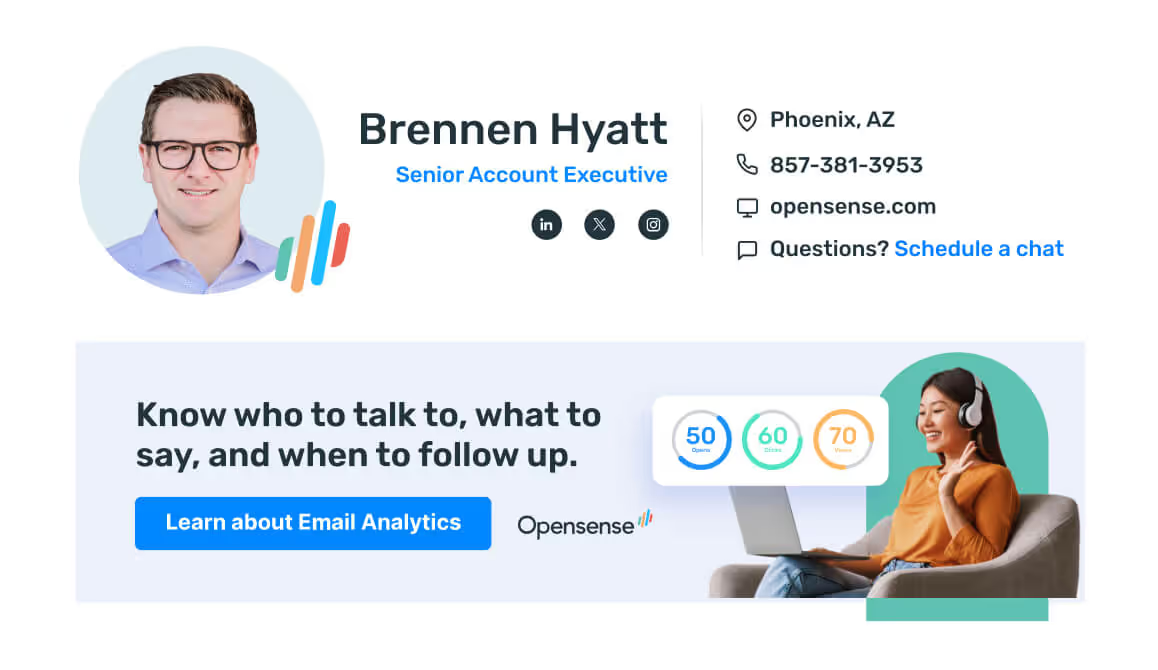 Managed signature, every send
Outlook Options can’t replace it
Plain Text Block
Runs on the server, applied after send
[[#]]
name: Deanna Tom
title: Chief of Staff
mobile: (866) 673-6736
linkedin: linkedin.com/in/deanna-tom
[[#]]
Text placeholder, transformed on send
 Managed signature, every send
Outlook Options can’t replace it
Visual Preview
Runs in the client, in compose
 Full signature, editable Whatever the user left in it
Users can edit it in compose
Outlook add-in on its own
Runs in the client, in compose
 Full signature; unlocked fields editable Unsigned from clients without the add-in
Enforced only when the mail client has the add-in
Server-side
Stamping and the Plain Text Block both use an Exchange Online mail flow rule. The rule routes outbound mail through Opensense, the managed HTML is applied, and the message lands in the recipient’s inbox.
In most cases, we recommend deploying Opensense email signatures using the Plain Text Block. End users get placeholder text in the compose window, and IT keeps server control.
Client-side
Visual Preview, or the Outlook add-in on its own, gives end users the full email signature right in the compose window. Both methods allow the end user to edit information attached to the signature, including legal disclaimers and compliance footers.
Check if mail flow rules are approved at your organization
Before you plan around the server-side methods, clear one prerequisite. A mail flow rule sends outbound email through Opensense before it reaches the recipient. Some security teams will not approve that route, and it’s better to know early in the procurement process rather than during implementation. Without mail flow rules, both server-side methods are off the table.
The fallback is Opensense’s Outlook add-in. It deploys through the Microsoft 365 admin center, locks the same fields, and never routes mail through Opensense servers. There is one operational gap to be mindful of with the add-in: if a user’s mail client cannot support it, their emails go out unsigned.
See how Opensense works with Office 365
Many Opensense customers using Microsoft 365 leverage both: mail flow rules and the Outlook add-in. The add-in provides the compose preview and leaves unlocked fields editable, while the mail flow rule enforces the correct email signature.
Audit the signatures your organization sends today
Whichever path is chosen after that conversation, don’t start designing or redesigning yet. The next step is collecting evidence: the email signatures your company already sends.
Ask five or six people, across multiple departments, to send an email to a mailbox you have access to.
The audit works even better when the senders span multiple email clients and devices. Outlook on Windows, Outlook on the web, and Outlook Mobile each build mail differently, and so do their signatures.
When the emails arrive, skip the rendered preview. Open a variation of “View Source” (the name depends on your Outlook version) to read the received HTML, and look out for these four things:
- Does the logo carry descriptive alt text, and do spacer images carry an empty
alt=""? - Are the name, title, phone, and URL real text, or baked into a single
<img>tag? - Is there a second, personal signature stacked above or below the company block?
- Is there a plain-text (
text/plain) version of the message at all?
Write down the sender, their client, and any defects you see. These notes become your baseline for a standardized email signature. Expect defects that no template can fix: empty phone fields and stale job titles come from Entra ID, not from Outlook.
Cleaning up Entra ID becomes a necessary task before go-live, and in most rollouts it is the bulk of the real work. Once deployed, Opensense will fill your managed email signatures with fields straight from Entra ID: fix a phone number or a job title once in the directory, and every signature follows.
Finalize the template, lock the fields, disable the editor
Now that you have a baseline of where people change their signatures, there are three ways to prevent unwanted edits to your company’s email signature, and each one has a different job:
Finalize the template
Create your template using HTML and CSS in our signature editor. When finalizing, check for these five things:
Once the template is finalized, you should only need to fix directory data, not your email signature template.

Lock the fields
Establish the fields your end users can configure when sending emails. In Opensense, fields start unlocked; you can lock them per user, or in bulk by adding
-lockedto a field during configuration.See more about how Opensense enables this
Most profile-field configurations land in the same place: fields that identify the company and carry its obligations are locked, and fields that belong to the person stay open.
Profile fieldsExampleEditableLockedEditableLockedEditableDisable Outlook’s own signature editor
Client-side or server-side, a leftover local email signature will be added under the managed email signature. Stop the internal “why do I have two signatures” ticket before it happens. Use Microsoft’s Group Policy (GPO) method, or Intune on cloud-managed machines, to disable local email signatures across your company.
The 45-minute setup and the deliberately ugly test
After all of that planning, the rollout is the short part. Most organizations finish their first deploy in about 45 minutes: connect the tenant, authenticate with Entra ID, save a template, and roll out.
The Outlook add-in deploys through the Microsoft 365 admin center, and can take up to 72 hours to reach every user profile. If the add-in is part of your rollout, schedule the pilot around the 72 hours, not the setup time.
Then comes the deliberately ugly test. Sending an email from your own device proves nothing. Recruit a pilot user and try to break the deployment:
- Have them paste the worst signature they can imagine into Outlook Options.
- Send to your test mailbox from desktop Outlook, Outlook on the web, and Outlook Mobile.
- Read the received HTML. On a server-side deployment, the recipient sees only the managed signature; the pasted email signature should never arrive.
- If your Microsoft 365 tenant is add-in-only, send once more from a client without the add-in and confirm the message went out unsigned. This is the operational gap mentioned above.
Re-run the test after any change that touches the signature HTML: a logo swap, a disclaimer edit, a banner campaign.
The deployment described here will not apply to your organization if you are using on-premises Exchange. That path uses a transport agent instead, and has no add-in support. Microsoft 365 GCC High tenants have extra setup steps as well, so the 45-minute figure does not apply to them either.
See how the same setup works on Google Workspace
Take control of your email signatures
A pilot group of ten, a test mailbox, and one deliberately bad paste will show you exactly where your email signatures stand. It takes an afternoon, and from there, enforced signatures are a 45-minute setup away.
We can help you choose Stamping, Plain Text Block, Visual Preview, or the add-in, and ensure the email signature you approved is the signature your organization actually sends.